Roles & permissions
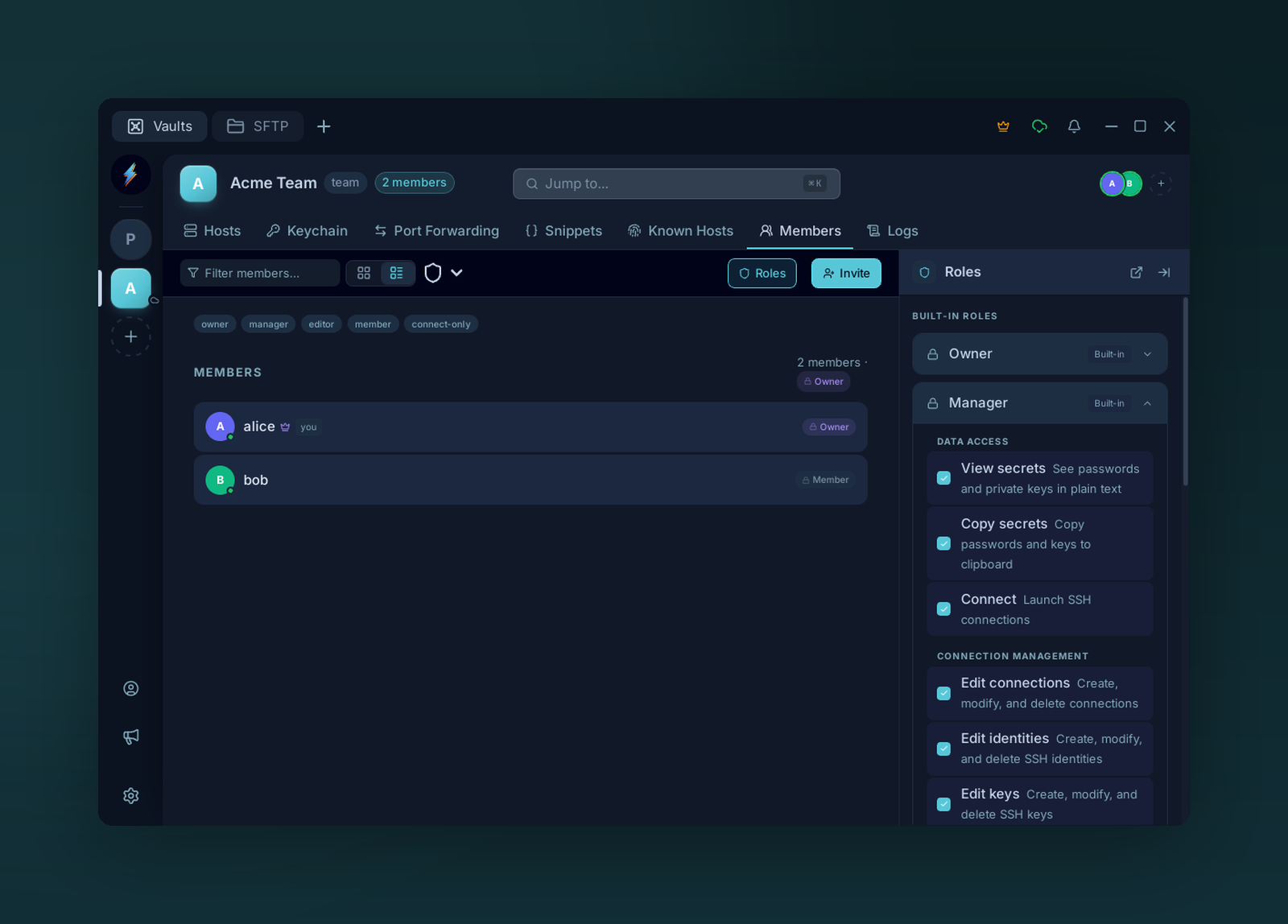
Every member gets a role. Expand a built-in role to see exactly what it allows.
Built-in roles (Teams)
| Role | What it can do |
|---|---|
| Owner | Everything, including billing and vault settings, and always sees every object. |
| Manager | Everything an Editor can, plus the audit log, inviting people and managing members and roles. |
| Editor | Add and change hosts, identities, keys, folders and snippets. |
| Member | Connect and see credentials, and edit snippets, but not change hosts or keys. |
| Connect-Only | Open connections without ever seeing the credentials behind them. |
Business: granular permissions
Business adds three layers on top of the built-in roles. Per-member and per-object permissions use the same Allow / Inherit / Deny control.
Custom roles
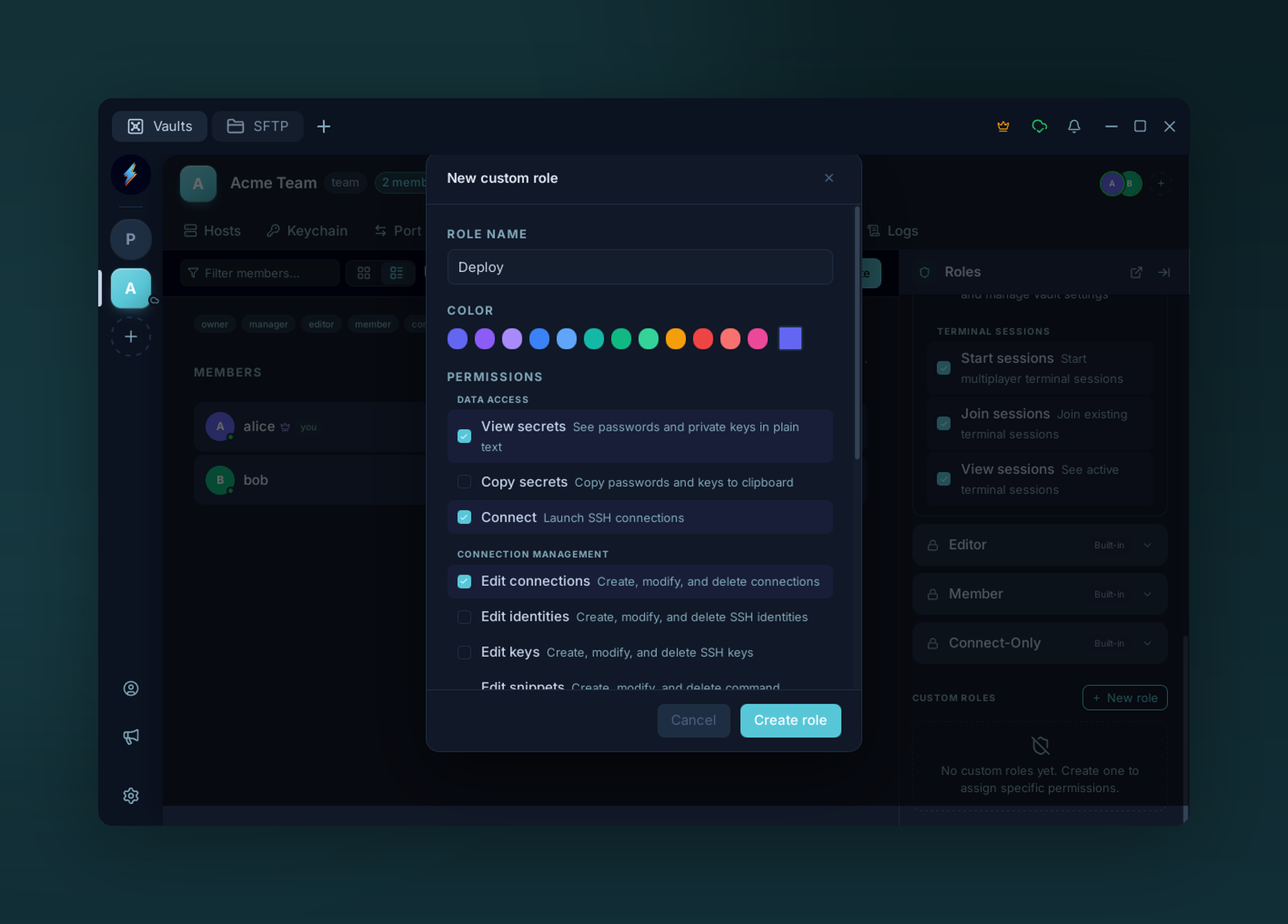
Give a role a name and colour, then pick exactly the permissions it grants.
For example, a Deploy role that can view secrets and connect, but not copy secrets.
Per-member permissions
Open a member and set Allow or Deny on any permission for that person only. A Deny always wins over what their roles grant.
Per-object permissions
Every host, folder, key, identity, snippet and port forward has a Permissions section. Choose @everyone, a role or a member, then set Allow or Deny per permission.
- An object inside a folder is synced with the folder until you give it its own rules.
- Hiding a folder hides everything synced with it. An item with its own rules follows those rules instead.
- The owner and anyone with the Administrator permission always see and use every object.
Downgrading from Business
When a team drops below Business, everything Business granted stops and everything it restricted stays — nobody ever gets more access than they had:
- Custom roles grant nothing; members keep their built-in roles. A member whose only role is custom loses access until you give them a built-in role or upgrade.
- A member's allowed overrides are off; their denied overrides still apply.
- On objects with their own rules, allow rules are off and deny rules still apply. The team owner still sees everything.
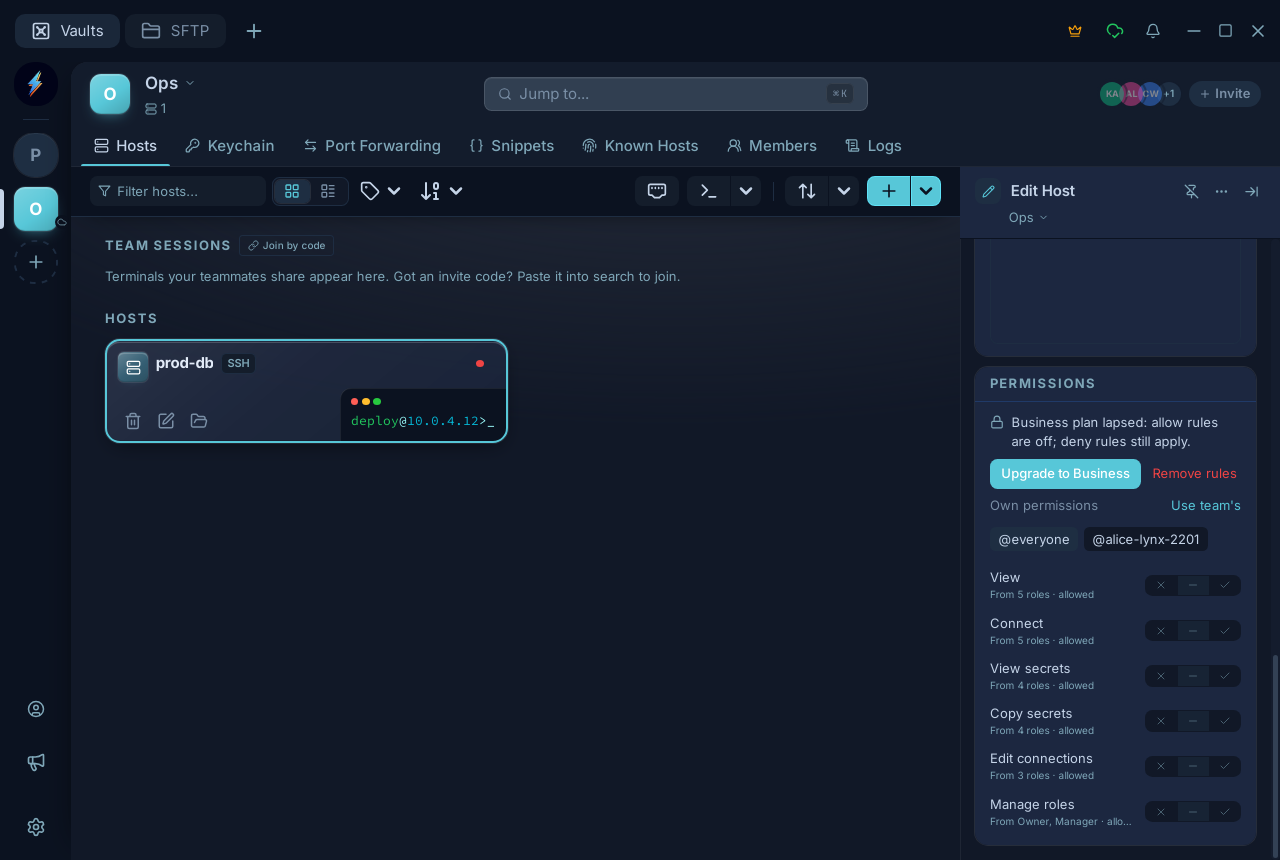
After a downgrade: allow rules are off, deny rules still apply, and the owner can upgrade or remove the rules.
You can remove rules (Remove rules, Remove overrides, removing a custom role from a member, or Use team's (or Sync now for an item in a folder) on an object) but not add or change them. Nothing is deleted: upgrading back to Business restores every rule. The team owner can upgrade from the same place.
Self-hosting? Update the server together with the app — an older server makes the app lock your team's permissions.